Using Direct Deposit to Pay Employees
If you will be using direct deposit to pay one or more employees, there are several steps to be completed to enable the program to process the payroll. You will need to contact your bank prior to setting up direct deposit to determine what information needs to be entered on the System Profile screen.
Before setting anything up in the Payroll program to enable the EFT options, call the Church's bank and let them know you wish to use EFT for payroll. They will usually tell you one of two things:
- They will tell you that they do not wish to have an EFT file submitted to them. Instead, they will set you up with a login to a website where they will require you to manually fill out the fields for everyone, their account numbers and the amounts they are getting paid, and then submit it through that interface. If this is their procedure, then you do NOT need to set anything up in the Church Windows Payroll program since they do not need the EFT file it creates. Instead, you can continue using Payroll as if they were getting checks. Just use dummy check numbers (maybe a date or reference number as you prefer) and print the checks on regular paper to be used as stubs.
- They will say that they accept the EFT file that Church Windows Payroll can create, which is an ACH file in NACHA format. If this is the case, continue below with the procedure.
Transmission of the files is usually done one of three ways:
- Physically taking the computer disk with the file on it to the bank;
- Emailing the file to the bank;
- Transmitting the file through the bank's website.
Note:
If the bank wants you to email the file, the file should be encrypted for safe transmittal. There are various software packages for sale that can encrypt files.
Direct Deposit Setup - System Profile
To open this screen, click on Sys. Admin. and choose System Profile.
EFT/ACH Information
- Company Identification #: This is a 10-digit number that the bank uses to identify the account from which to draw the funds. Many banks use the customer's Federal identification number, preceded by a "1." If "Use Tax ID" is selected, then this number will be filled in automatically. If the bank identifies your account in another manner, your bank will provide you with the number to use here. If this is the case, then select "Use Other ID" and type the number into the "Company Identification #" field.
- Routing Number: Enter the routing number of the checking account that you will be using to pay your employees. Check with your bank if you are uncertain of the number.
- Account Number: Enter your bank account number. This is a required field if your bank requires a balanced file.
- Bank Name: Enter the name of your bank (up to 23 characters long). Some banks require that this information be in all capital letters.
- Organization Name: Enter your organization name here, which can be your Church name (up to 23 characters in length). This is the name displayed on the employee's bank statement identifying the deposit. Some banks require this information in all capital letters.
- Entry Description: This is a description of the type of transaction (up to 10 characters) such as "Payroll" that may appear on the employee's bank statement. Some banks require this information in all capital letters.
- Optional Data: This is an optional field for further identification (up to 20 characters).
- Balanced Debit/Credit Entries in EFT File: If your bank requires a balanced file, click in the box.
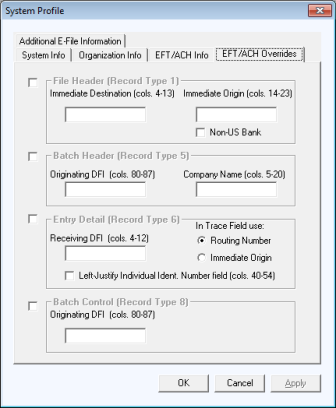
EFT/ACH Overrides
|
|
|
Direct Deposit Setup - Employee File
Enter the following information for each employee to be paid through direct deposit.
- Click Data Setup, Employee File and select the employee. Click on the General (2) tab and scroll to the Banking Information for EFT section.
- Banking Information for EFT – Click on the Use Direct Deposit checkbox.
- The default setting for the EFT Detail Record - Individual ID Field is "Not required by your financial institution." You can select social security # as Individual ID, employee # as Individual ID or enter text for Individual ID depending on what your bank requires.
All the information must be completed before the system will allow you to leave this tab. Each employee may only have one account into which funds are direct deposited.
Print EFT Authorization Form
There is a blank EFT Authorization form available (last menu item when you click Payroll). This form can be used to record an employee's account information as well as the employee's signature authorizing the EFT deposits.
Create EFT Prenotify File
The prenotification feature allows you to generate a zero-pay EFT transaction for one or more employees. This EFT transaction can then be sent to your bank to verify that routing and account numbers are correct.
To create a Prenotify file, click the Payroll button and choose Create EFT Prenotify File. Usually, if a prenotification file is transmitted to the bank, there needs to be a 6 day wait between the "settlement date" of the prenotification file and the next settlement date of a file submitted to the bank for anyone in the prenotification batch.
- Select the settlement date, and click Next.
- Select those employees. Click Next.
- Review the list of employees, and click Finish. You will not be able to create another EFT file or Prenotify file for the same settlement date.
- Use Copy EFT File menu option to create the file transmitted to the bank.
Running a Payroll with One or More Employees Using Direct Deposit
There are 2 changes to the Running a Payroll instructions if you have employees paid via direct deposit.
First, in Step 1 - Running a Payroll (select pay date)
- Enter the Settlement Date as the pay date for EFT transactions. The file needs to be submitted to the bank at least 2 days prior to that.
Second, in Step 6 - Posting Payroll to the Employee's Record
- If any employees are paid by direct deposit, check the Create EFT Transaction File box. If the Create EFT Transaction File box is left blank, checks will be generated for all employees. Click on Finish.
The following screen will appear: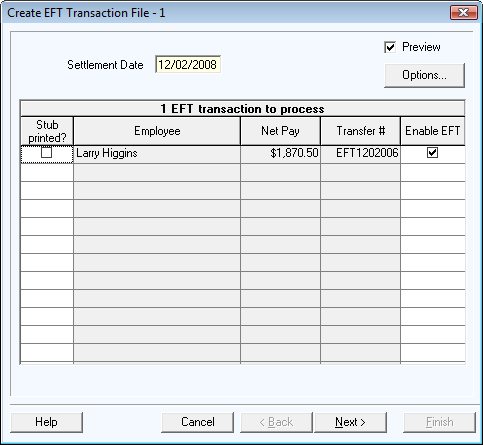
- If the employee will not be paid via EFT for this pay (e.g. a bonus calculation where you want a physical check), uncheck the Enable EFT box. Then an EFT stub will not be printed. Instead the transaction will move to the check printing queue for this pay.
- The Options button gives you choices for paystub presentation.
The message, "To be deposited via Electronic Transfer" will appear in the "check" portion of the stub and the Employer Name will be shown in signature line. - Click on Next and Print.
- Click on Next. If a stub did not print correctly, click to remove the checkmark from the "Stub Printed?" box. Click on Back to reprint the stubs that did not print correctly.
The following message will appear at the bottom of the screen:
"Ready to create EFT transaction file. Clicking on 'Finish' will create an EFT transaction file containing entries for the employees shown above. Once this file is created, you will not be able to create another transaction file for the same date."
- Click Finish to create the EFT transaction file. Click Back twice to return to the Create EFT Transaction File – 1 screen. If you click Cancel at this point, the EFT file will not be created. The next time you enter the Payroll Program you will get a warning message, "Posted payroll entries exist that need direct deposit processing." Processing of the pending EFT transaction file must be completed before any other processing can be done.
- If there are any checks to print, the Check Printing screen will open. The remaining steps are the same as Running a Payroll.
Copy EFT File
Click on Payroll, Copy EFT File and select the settlement date (pay date) that you want to copy. The default setting is to copy the file to removable media on the A: drive. Click Copy File. File names default to EFTYYMMDD, where YY equals the year, MM the month and DD the day.
Correcting Payroll Processed Using EFT
Once a file is created, it is assumed the file will be transmitted to the bank. For this reason, employees paid via direct deposit will not appear in the Void Individual Pay screen, they appear in the Void EFT Pay screen. If payroll has not been transmitted to the bank, you can Void EFT Pay which will void the entire EFT pay and it will need to be calculated again.
If an entry needs to be omitted, Calculate Adjustment must be used to change the employee record.
Once an EFT transaction file has been created for a given Settlement Date, if you need to reprocess pay for that date, you need to print checks instead of using an EFT file.
